

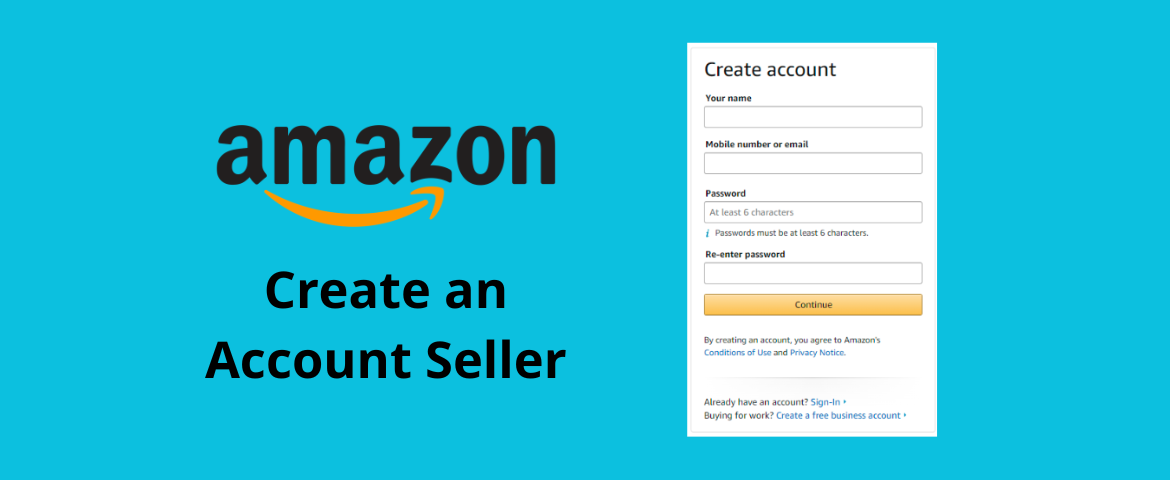
If you’re planning to start a print-on-demand (POD) business on Amazon, the first step is setting up an Amazon Seller Central account. This is where you list products, manage orders, run ads, and receive payments.
At first, the process may seem a bit confusing, but once you understand the steps, it’s quite straightforward. Here’s a simplified guide to help you get started and avoid common mistakes.
Step 1: Choose a Selling Plan
Amazon offers two options:
Individual Plan
- No monthly fee, but charged USD $0.99 per item sold
- Suitable if you sell fewer than 40 items/month or just testing
- Limitations: no ads, no bulk upload, limited tools
Professional Plan
- USD $39.99/month
- Recommended for POD because you get:
- Unlimited listings
- Bulk upload
- Advertising (Sponsored Products, Brands)
- Advanced reports, automation, coupons
👉 For POD, the Professional plan is almost essential.
Step 2: Sign Up
Go to: https://sell.amazon.com → click Sign up
- If you already have an Amazon account: log in
- If not: create a new account (name, email, password)
Step 3: Enable Two-Step Verification
- Enter OTP sent to your email
- Verify your phone via SMS
→ Two-step verification activated
Step 4: Prepare Required Documents
You’ll need:
- ID (NRIC/passport)
- Bank statement or credit card
- Valid payment card
- Mobile number
Step 5: Set Business Location & Type
- Select your country of residence
- Choose business type:
- Individual
- Sole proprietor
- Private company
Step 6: Enter Personal Details
- Name must match your ID exactly
- Agree to Amazon’s terms
Step 7: Verify Contact Information
- Fill in address, DOB, nationality
- Enter SMS PIN → click Verify
Step 8: Add Payment Details
- Credit card: for Amazon fees
- Bank account:
- Must match your name
- Must support international payments
Step 9: Set Up Your Store
- Choose a store name (keep it general for POD)
- Provide product and brand details (UPC, trademark, etc.)
Step 10: Identity Verification
- Upload documents + bank statement
- Complete a video call with Amazon
→ Once approved, your Seller account will be activated
What to Do After Your Amazon Seller Account Is Approved (Simplified – English Singapore)
Once you’ve completed video verification and your account is activated, you’ve only finished setting up your store. To start making money with POD, you still need to build your operating system.
Connect to a POD Supplier
After connecting:
- A customer places an order on Amazon
- The order is sent automatically to your POD supplier
- They print and ship the product
- Tracking is updated back on Amazon
This automation means you don’t need to fulfil orders manually.
👉 This is critical because Amazon evaluates sellers based on delivery speed and order completion rate. Slow manual handling can put your account at risk.
Set Up Tax & Payments
Next, complete the Tax Interview and add your deposit method (bank account).
- If you skip this step, you can still sell
- But Amazon will hold your funds until verification is done
Create Your First POD Listings
When starting out, don’t upload too many products.
A better approach:
- Begin with 1–3 core items (e.g. t-shirts, hoodies, mugs)
- Ensure each listing has:
- Proper SKU linked to your POD supplier
- Clear mockups
- Competitive pricing
- Complete descriptions
The goal here is to test the market and see which designs perform. More importantly, make sure your POD system runs smoothly before scaling.
Conclusion
Setting up your Seller Central account correctly is a key foundation for building a successful POD business on Amazon. Following the right steps helps you avoid common issues and keeps your account stable for long-term growth.